Transforms are powerful operations that expand your investigation by discovering new entities and relationships connected to your current nodes. They are the primary method for growing your graph and uncovering hidden connections. See the complete list of all transforms for detailed information on each transform type.
Right-click on a node to open its action menu. The menu displays quick actions and suggested transforms based on the node’s fields. Often, the only quick action is running all suggested transforms at once. You can also view all possible transforms and perform other node actions.
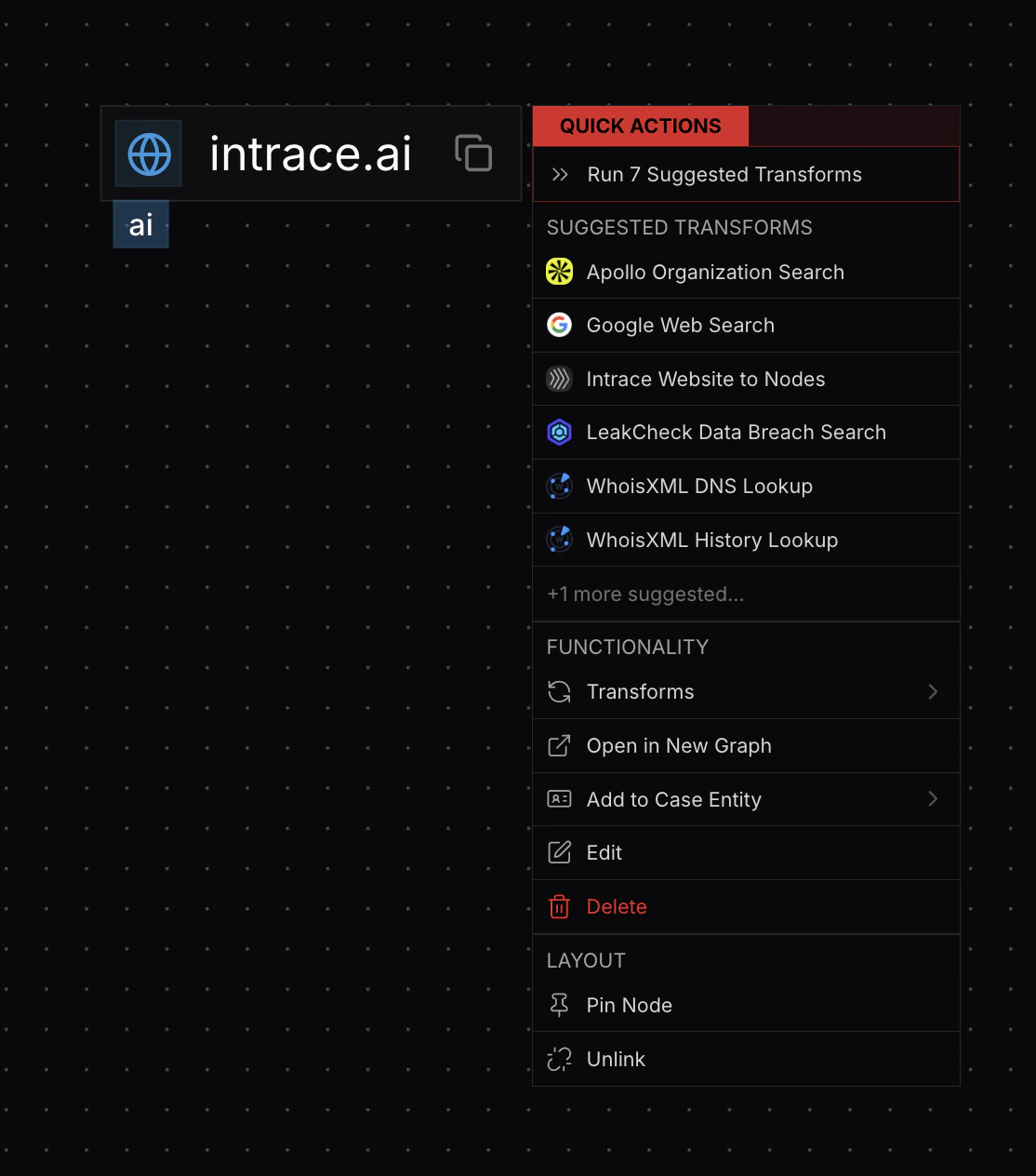
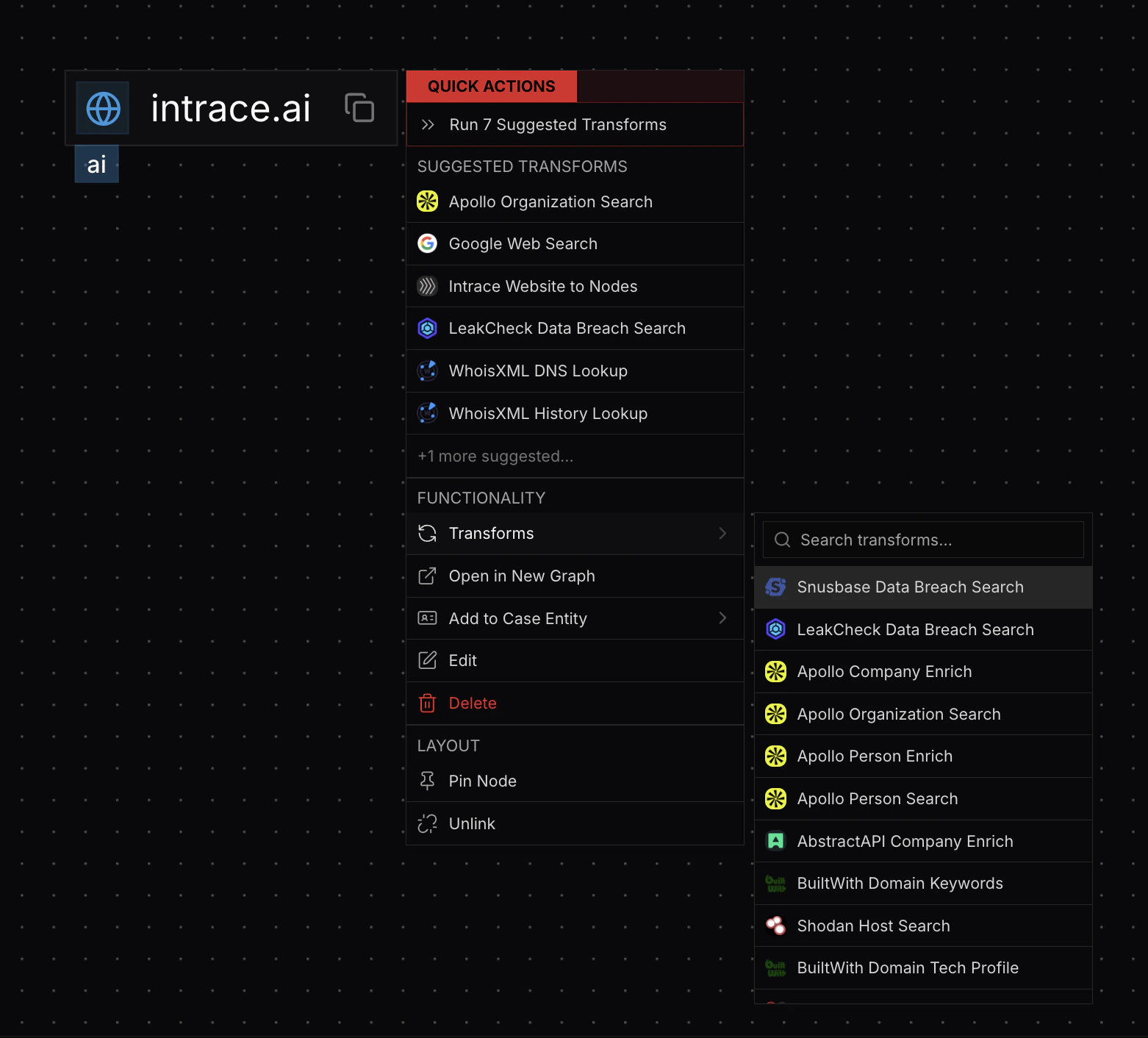
Hover over the Transforms section under Functionality to see all available transforms for the node’s field types.
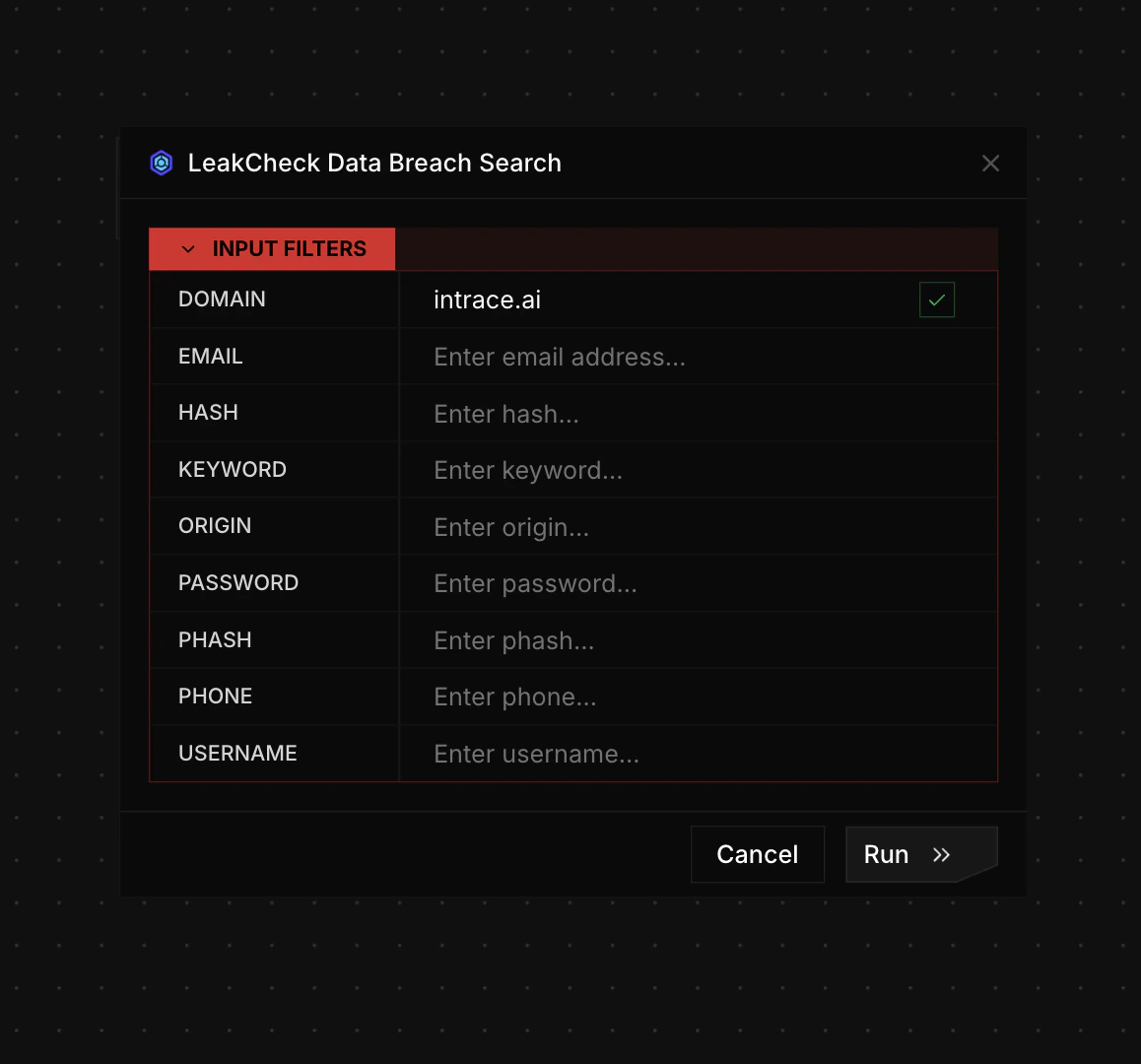
Clicking a single transform opens a dialog that autofills relevant fields from the node, with options to add additional inputs depending on the transform type.
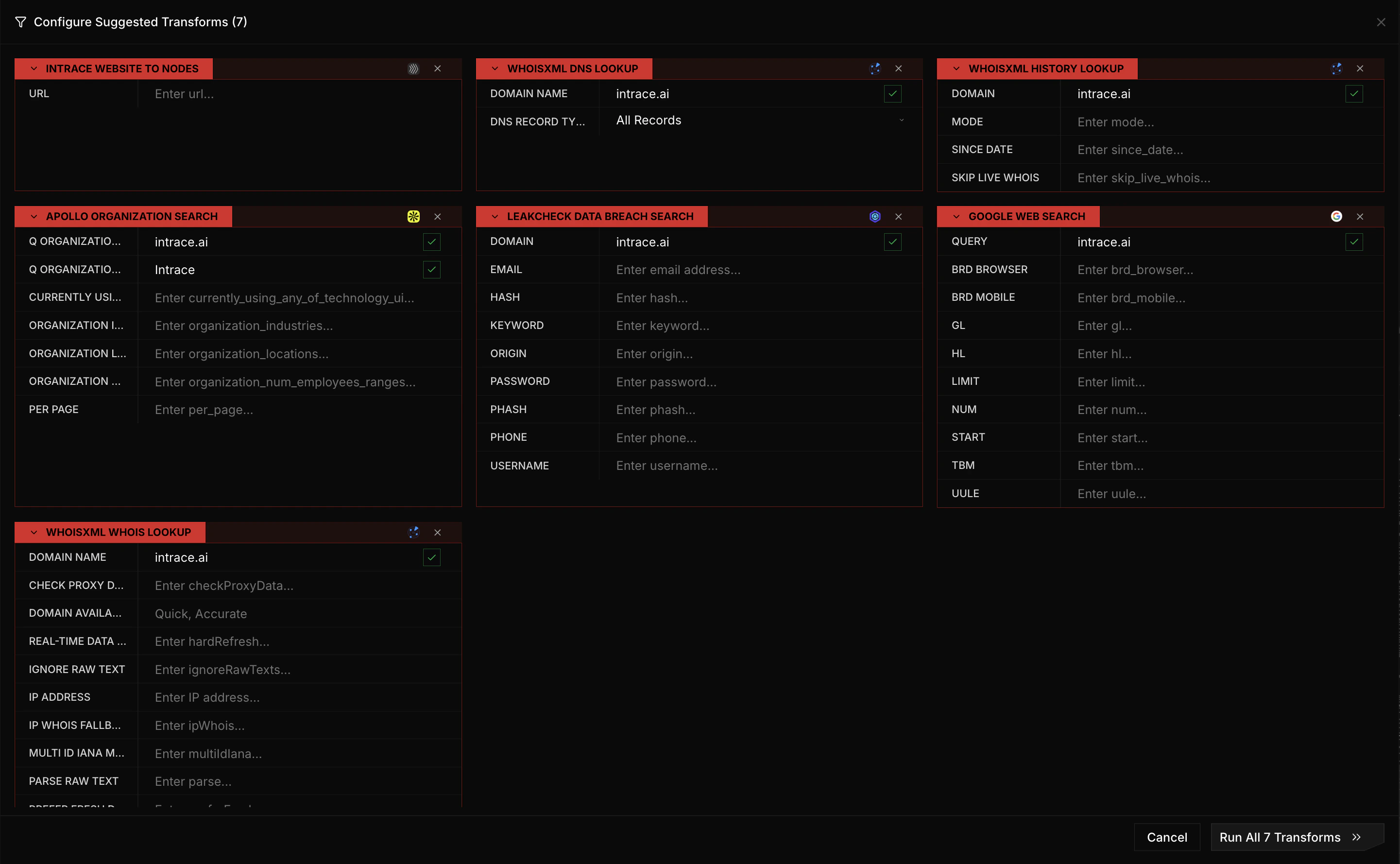
When you press Run, a loading indicator appears in the bottom pane to show the transform is running.Selecting multiple transforms shows all input tables in one view. Click the X button on any table to exclude that transform.
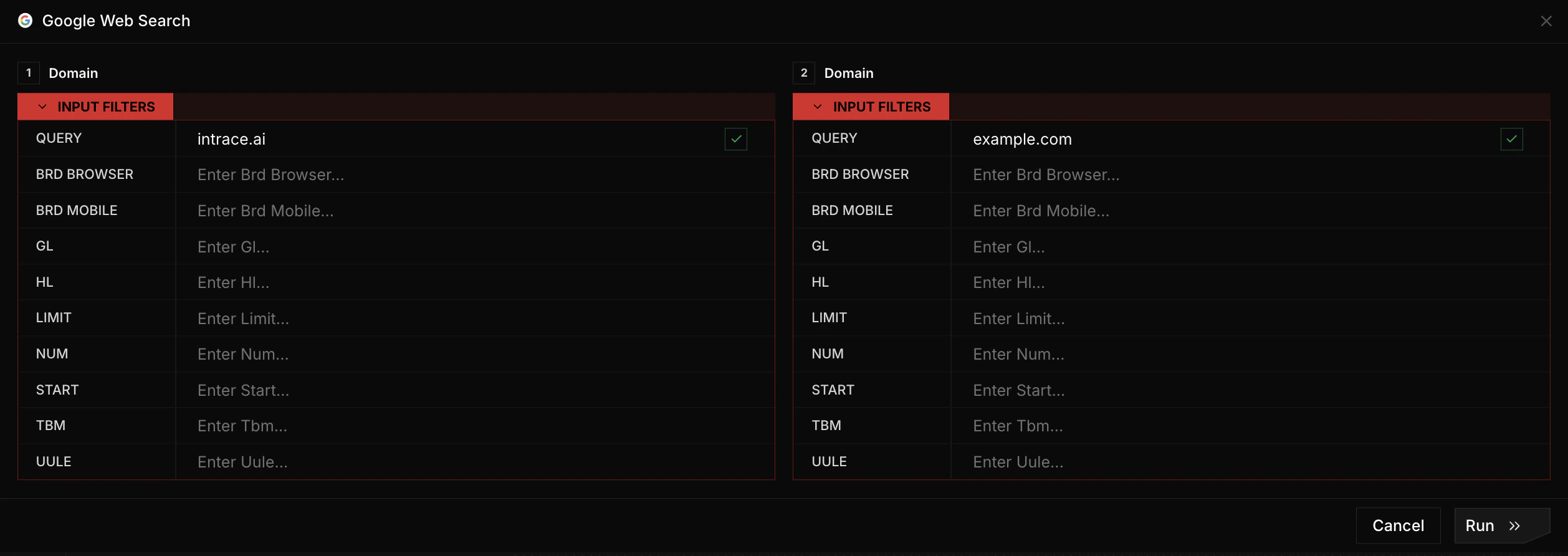
Running one transform on multiple selected nodes displays the same input tables with different autofilled values for each node.
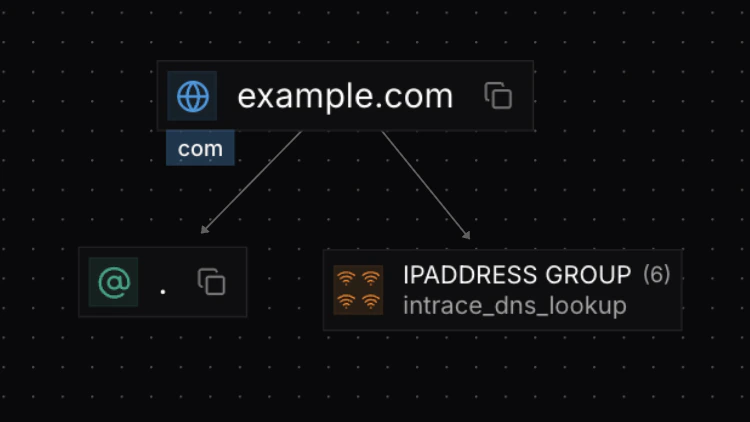
Transform results appear below the source node. Nodes of the same type are automatically grouped together. In this example, the transform returned 7 separate nodes, but 6 were grouped because they share the same type.

Some transforms return hierarchical results with multiple layers. Primary children connect directly to the source node, while secondary children connect to the primary children. In this example, every organization returned is also associated with an address.