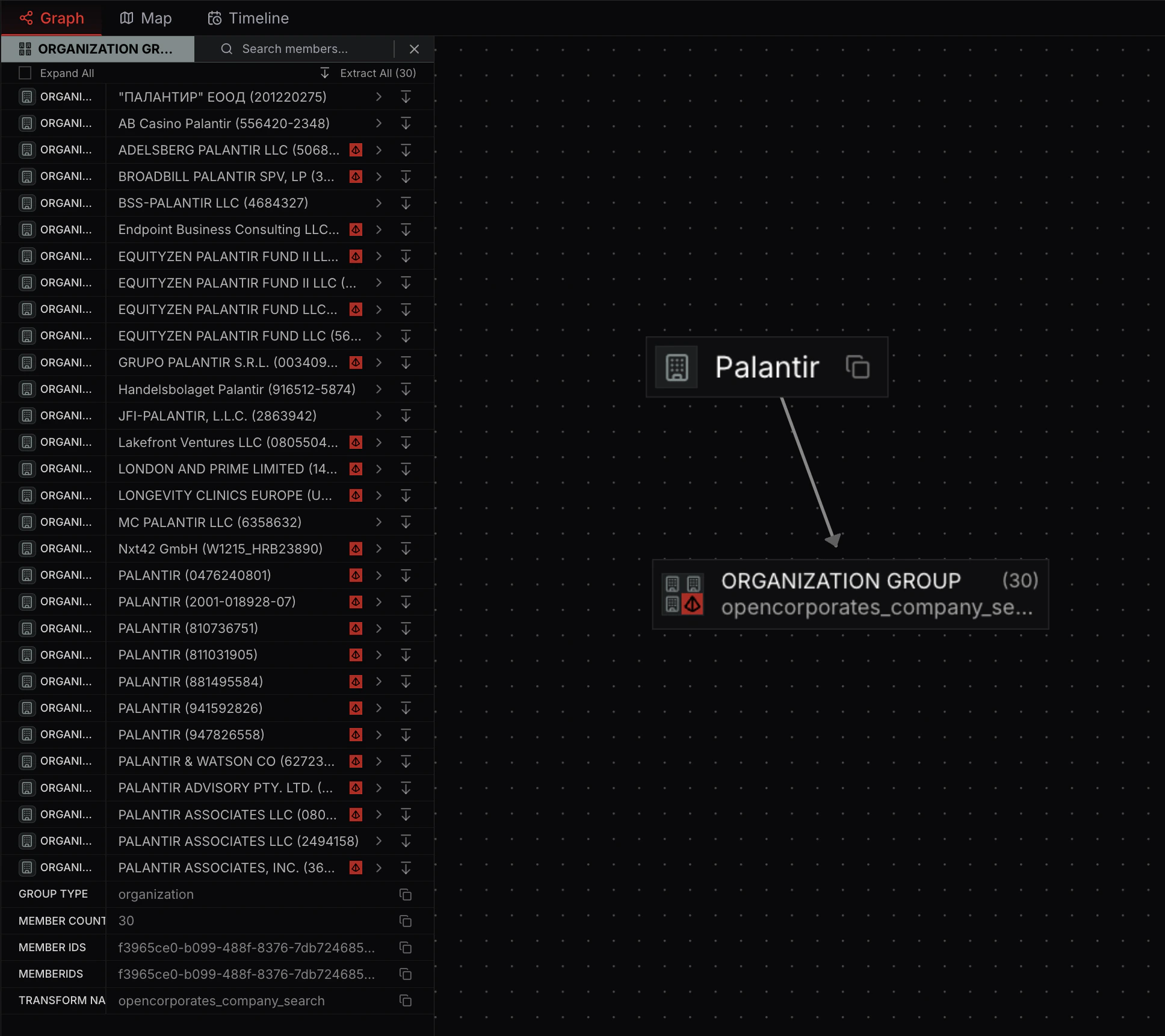
Group Details View
When you select a group, the details view shows information about the group and its contents.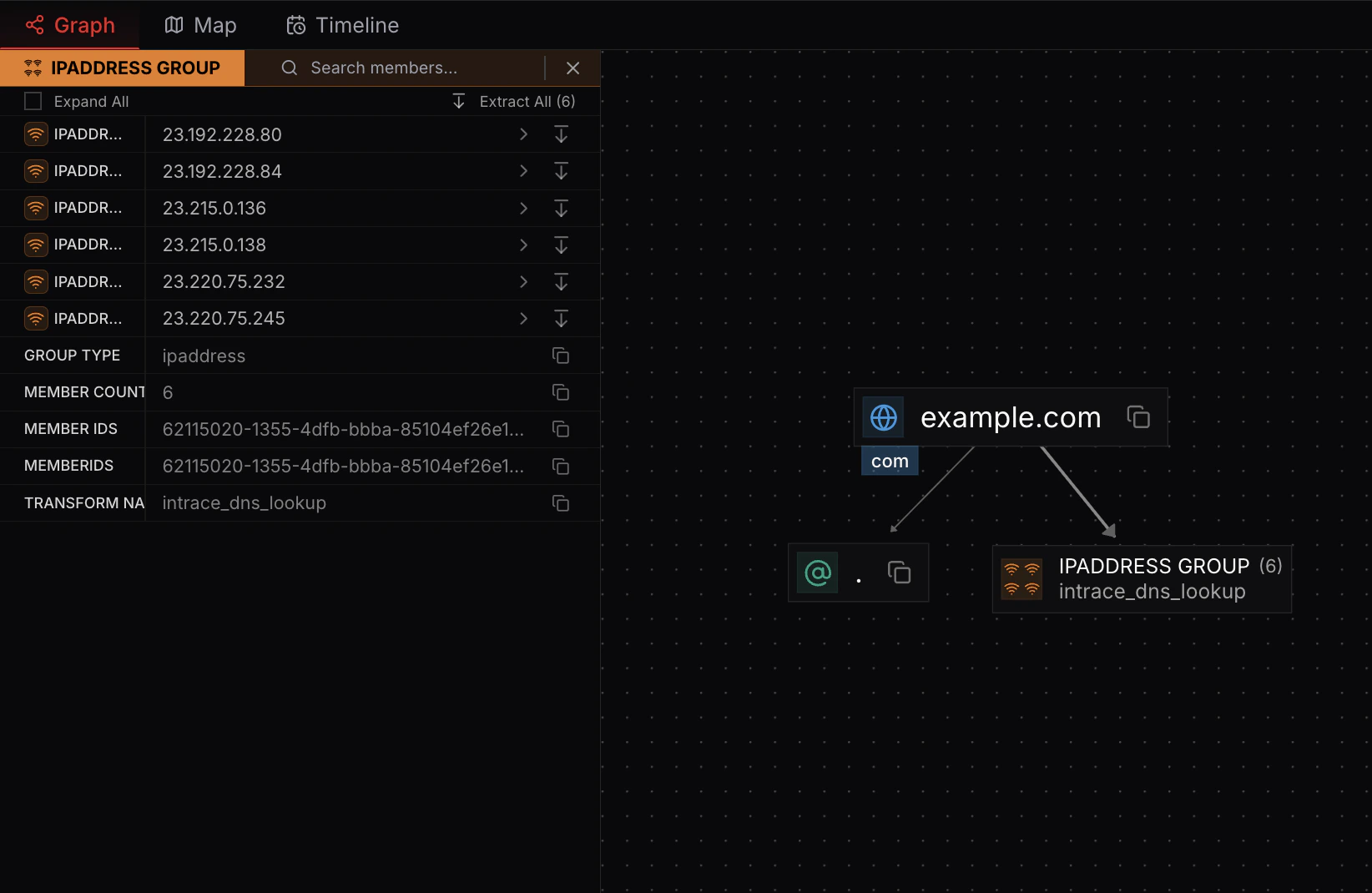
Expanding Groups
Click “Expand All” to see the contents of each node in the group. This reveals all individual nodes within the group.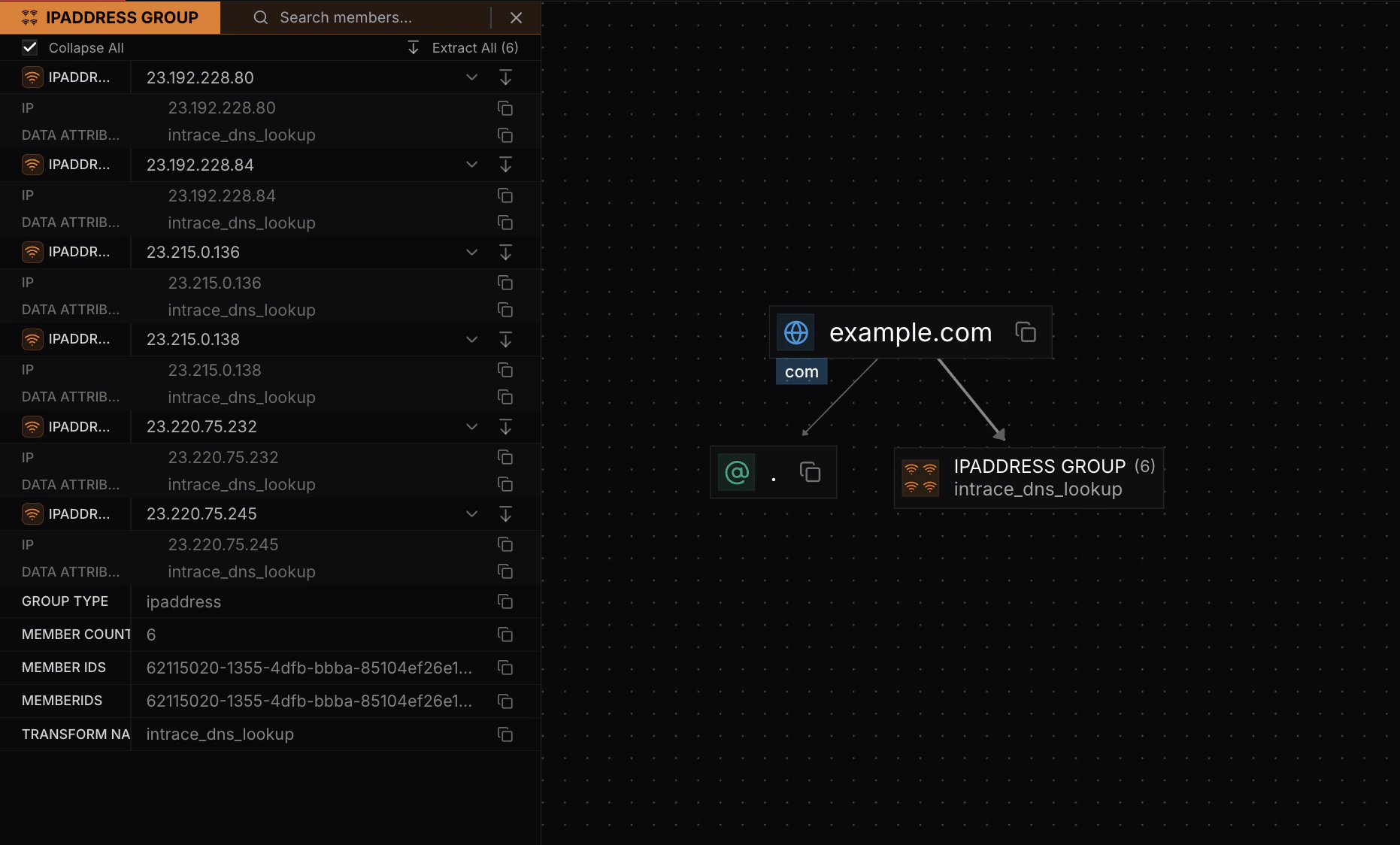
Extracting Nodes from Groups
You can extract individual nodes from groups. When you extract nodes, they are removed from the group and displayed separately, affecting the graph layout.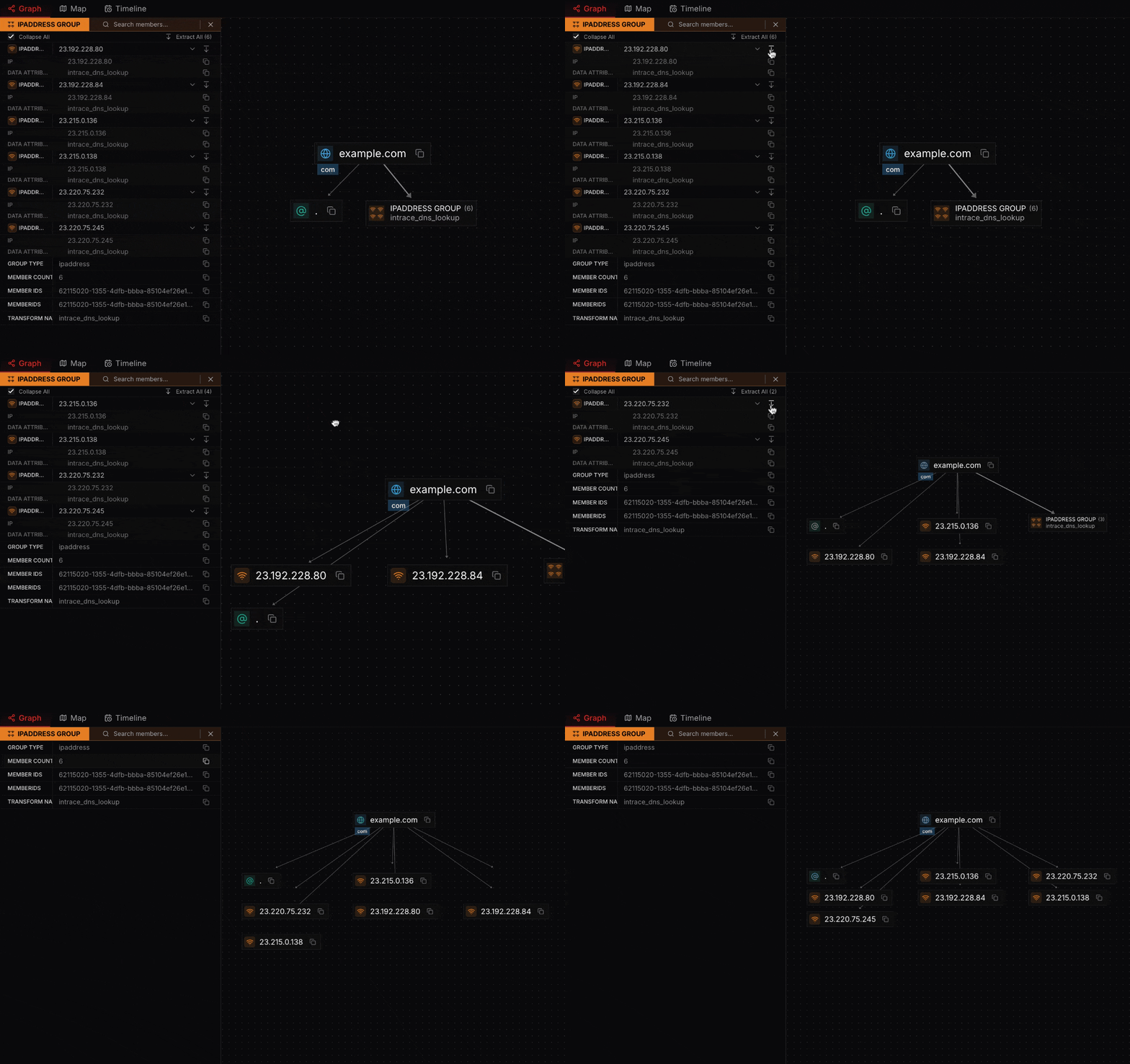
Hierarchical Nodes in Groups
Groups containing hierarchical nodes display a red hierarchical icon. In the details view, nodes with subnodes show the red icon next to them.