> ## Documentation Index
> Fetch the complete documentation index at: https://docs.intrace.ai/llms.txt
> Use this file to discover all available pages before exploring further.
# Graph Fundamentals
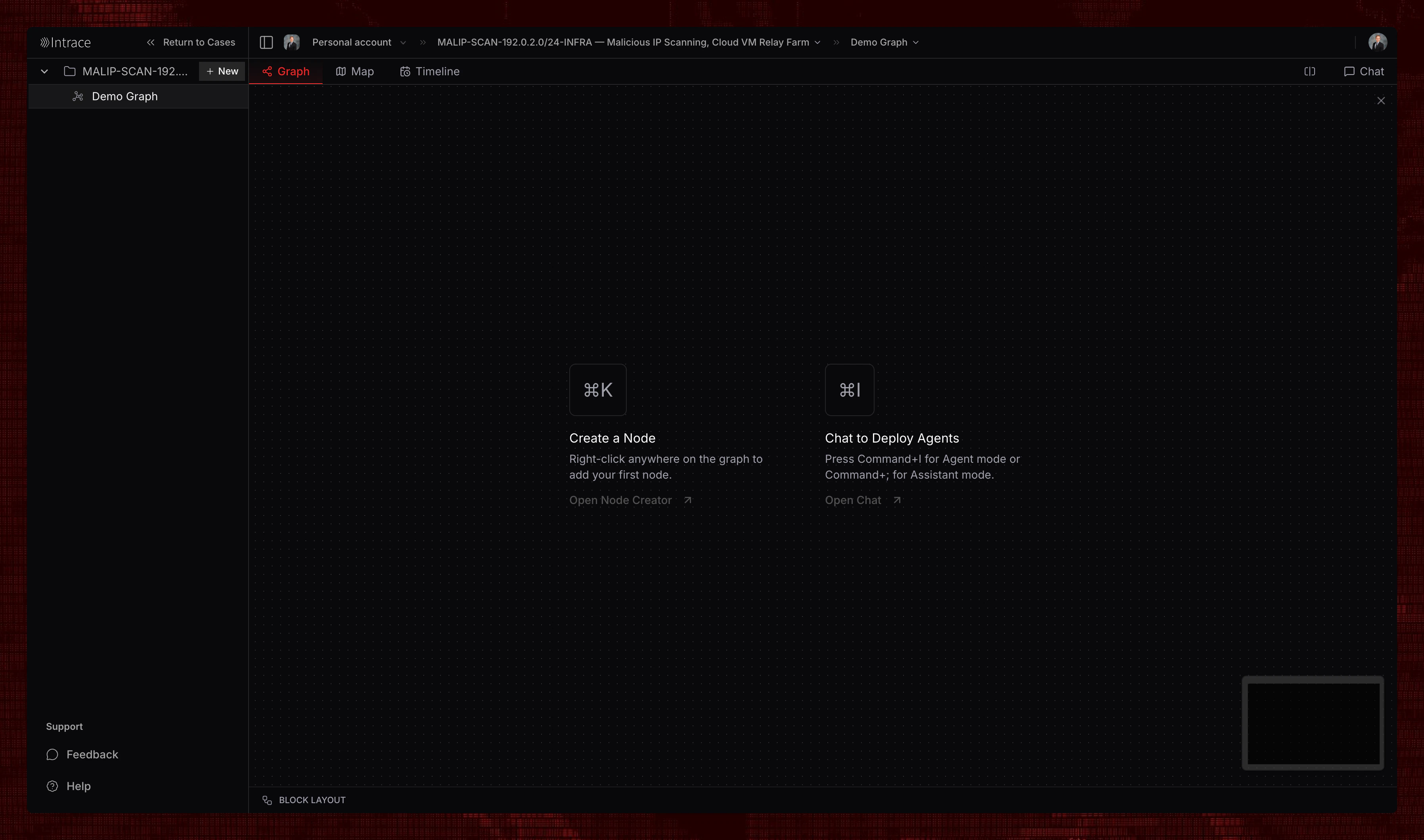
Understanding the fundamentals of the Intrace Graph is essential for effective investigations. The Graph provides a visual workspace where entities and their relationships are displayed as an interactive network.
 ## Core Concepts
The Graph operates on a node-and-edge model where entities are represented as nodes, and relationships between them are shown as connecting edges.
### Nodes
Nodes represent individual entities in your investigation, such as people, organizations, locations, or digital assets. Each node contains associated data and can be expanded to reveal additional connections.
### Edges
Edges are the connections between nodes, representing relationships like transactions, communications, associations, or other meaningful links between entities.
## Creating Nodes
Right-click anywhere on the graph to open the node creation menu.
## Core Concepts
The Graph operates on a node-and-edge model where entities are represented as nodes, and relationships between them are shown as connecting edges.
### Nodes
Nodes represent individual entities in your investigation, such as people, organizations, locations, or digital assets. Each node contains associated data and can be expanded to reveal additional connections.
### Edges
Edges are the connections between nodes, representing relationships like transactions, communications, associations, or other meaningful links between entities.
## Creating Nodes
Right-click anywhere on the graph to open the node creation menu.
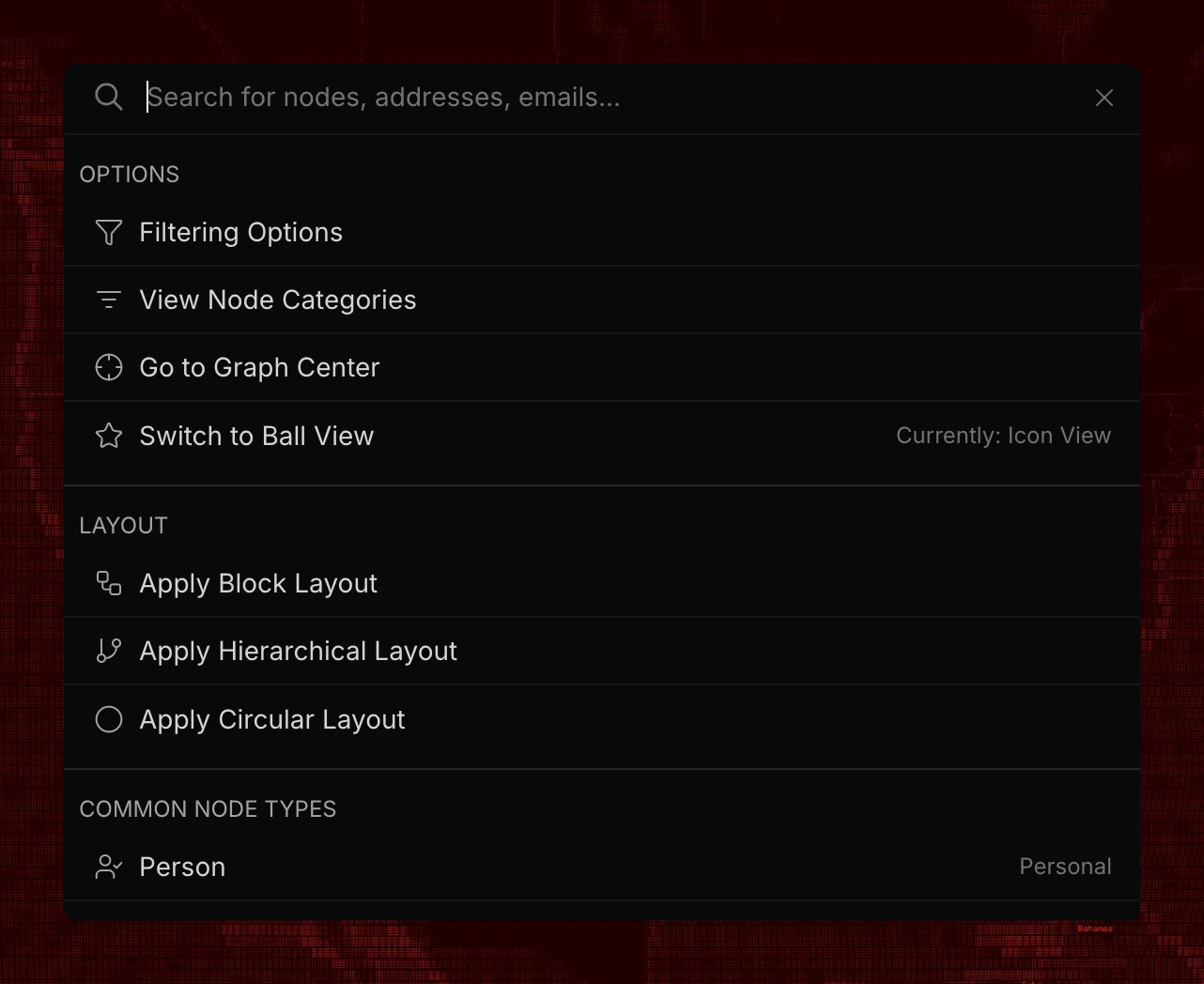 The menu provides options for filtering nodes, changing graph layout and appearance, and creating specific node types.
### Filtering Node Types
Use filtering options to display only specific node types on the graph.
The menu provides options for filtering nodes, changing graph layout and appearance, and creating specific node types.
### Filtering Node Types
Use filtering options to display only specific node types on the graph.
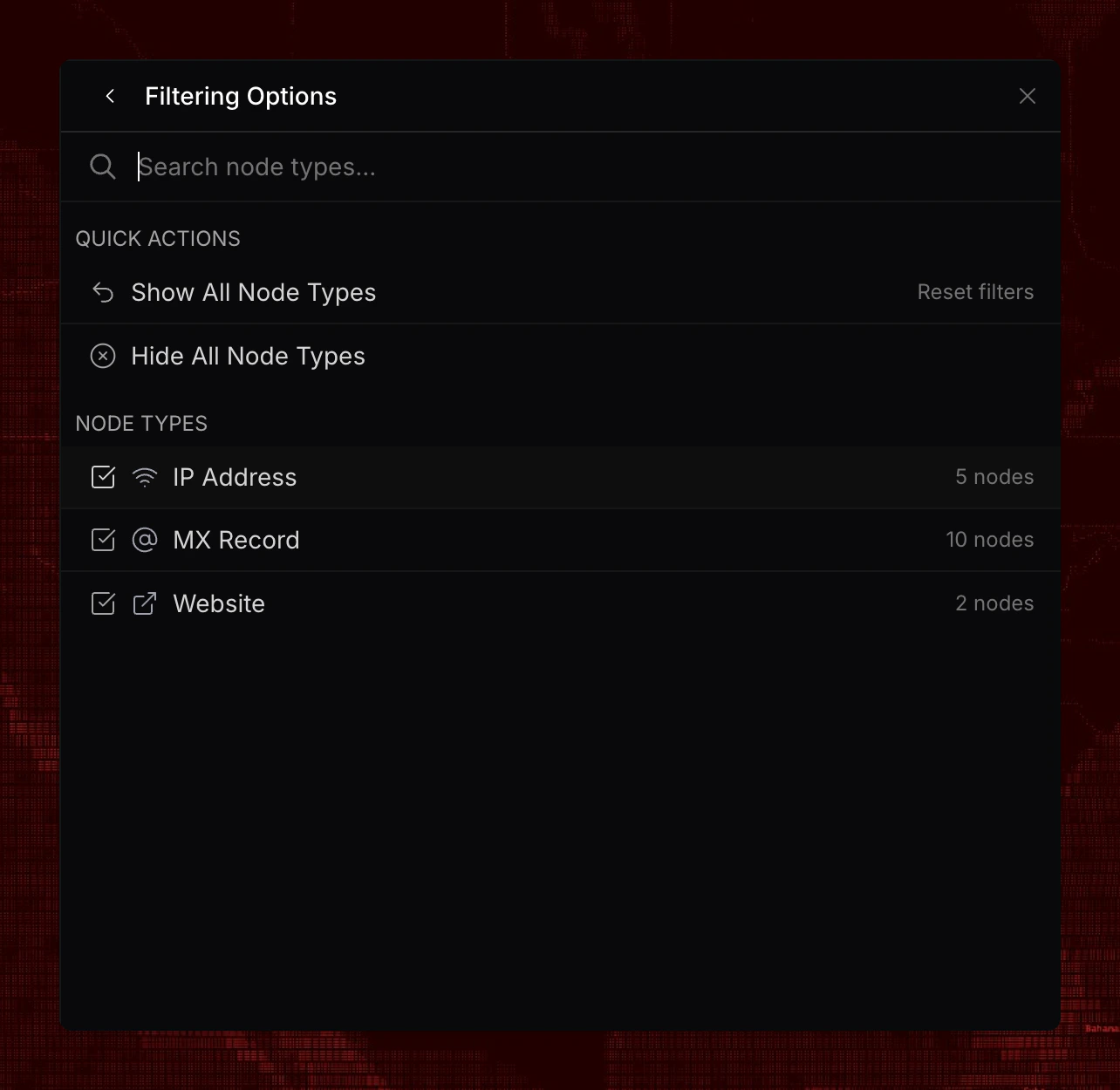 Select node types to show or hide, with quick actions to show all, hide all, or reset filters. Each node type displays the current count of matching nodes on the graph.
### Node Categories
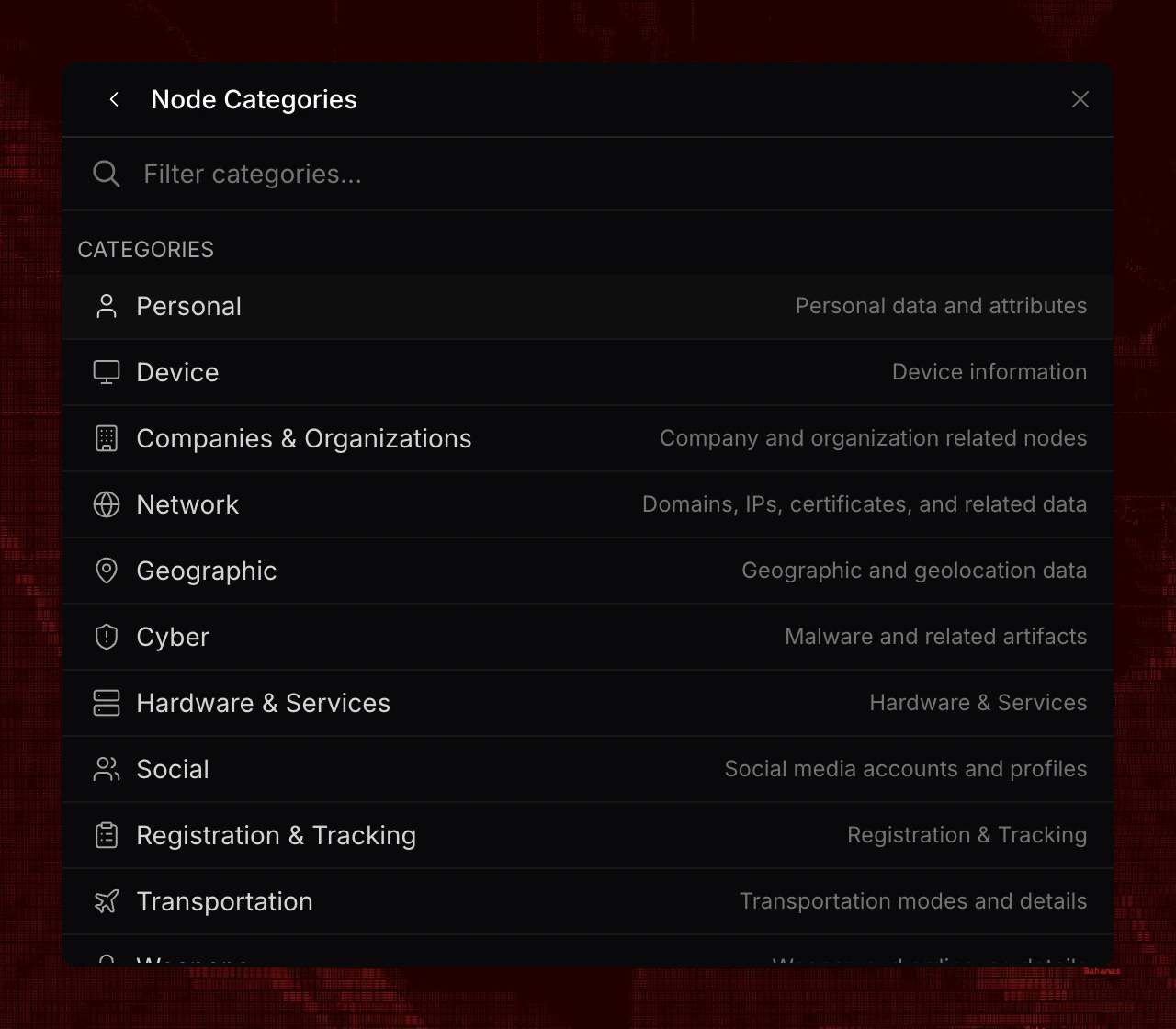
Nodes are organized into categories, each containing specific node types available for creation. See the [complete directory of all nodes](/graph/nodes) for comprehensive details.
Select node types to show or hide, with quick actions to show all, hide all, or reset filters. Each node type displays the current count of matching nodes on the graph.
### Node Categories
Nodes are organized into categories, each containing specific node types available for creation. See the [complete directory of all nodes](/graph/nodes) for comprehensive details.
 ### Creating a Node
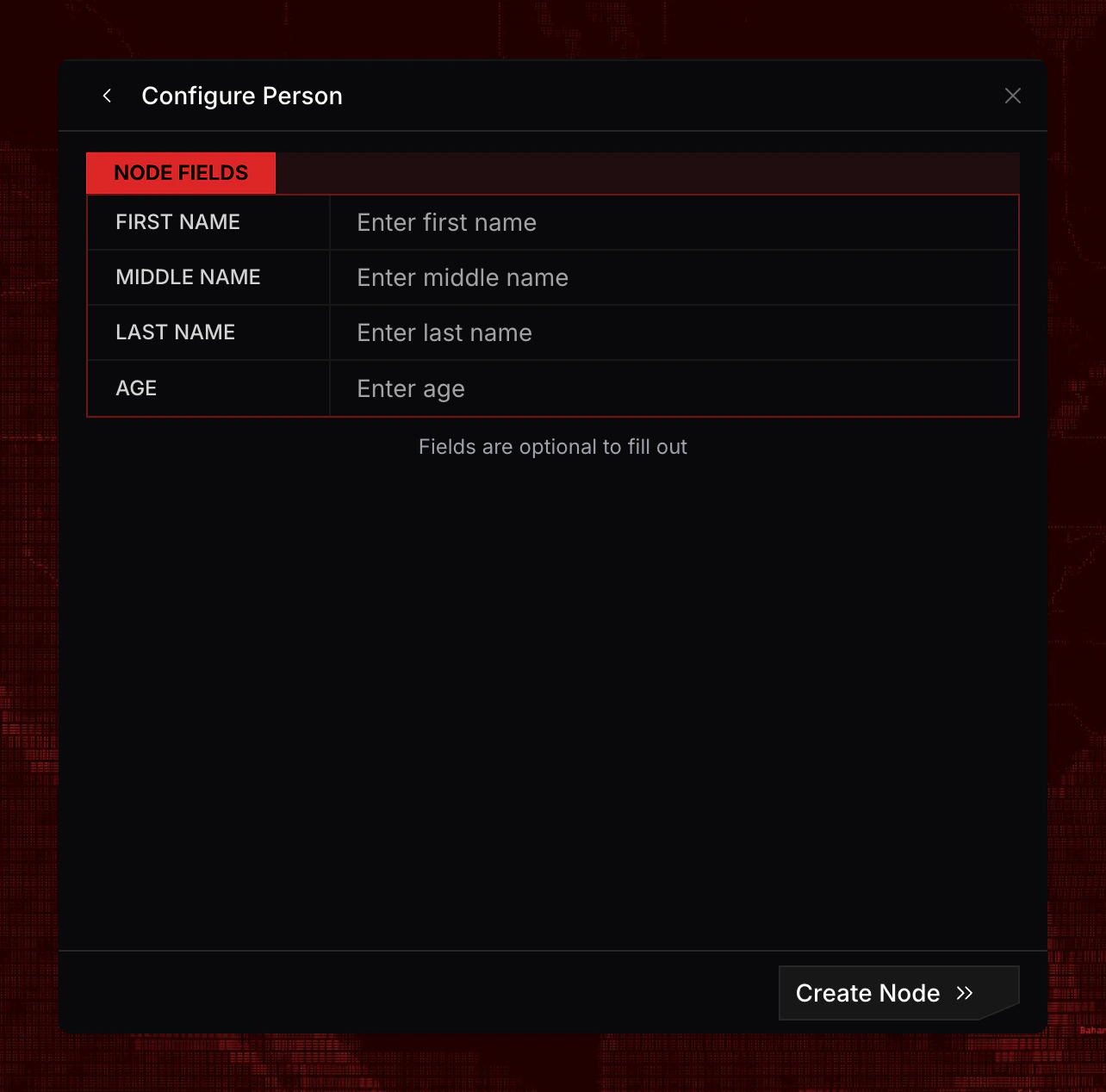
Select a node type to open the configuration form. Enter values for available fields—all fields are optional.
### Creating a Node
Select a node type to open the configuration form. Enter values for available fields—all fields are optional.
 ### Quick Create
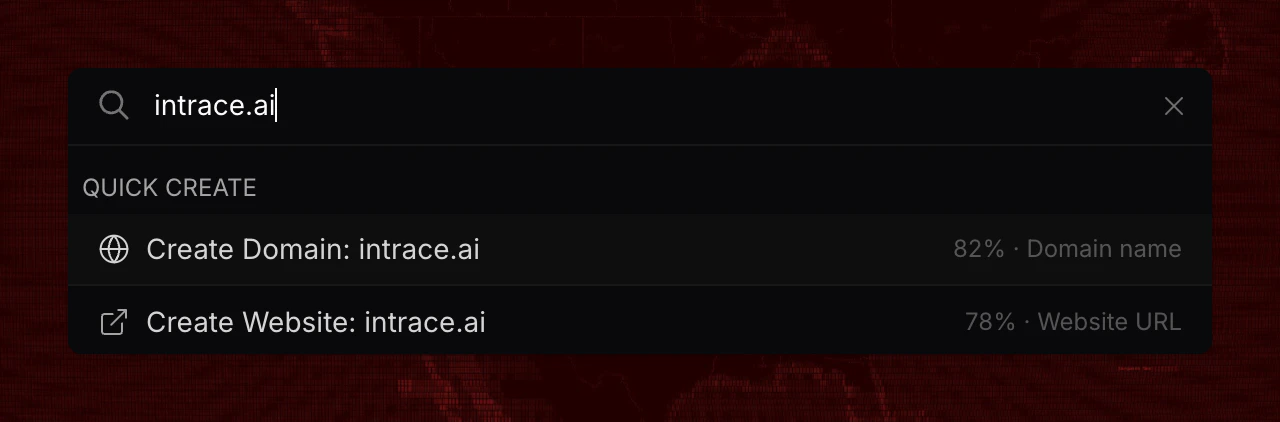
Type a recognizable value—such as a domain, email, phone number, or name—into the search bar to trigger quick create suggestions.
### Quick Create
Type a recognizable value—such as a domain, email, phone number, or name—into the search bar to trigger quick create suggestions.
 ### Nodes on the Graph
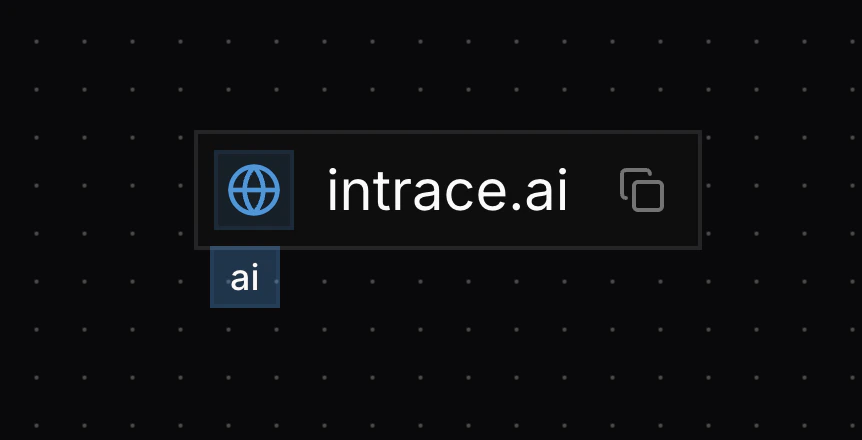
Nodes appear on the graph with an icon on the left, the display value in the center, and a copy button on the right. Some nodes include tags below the main value. While nodes can contain many fields, only one display value is shown on the graph.
### Nodes on the Graph
Nodes appear on the graph with an icon on the left, the display value in the center, and a copy button on the right. Some nodes include tags below the main value. While nodes can contain many fields, only one display value is shown on the graph.