> ## Documentation Index
> Fetch the complete documentation index at: https://docs.intrace.ai/llms.txt
> Use this file to discover all available pages before exploring further.
# Cases
Cases are the foundation of your investigations in Intrace. Each case provides a dedicated workspace where you can organize entities, build relationship graphs, search for intelligence, and collaborate with your team.
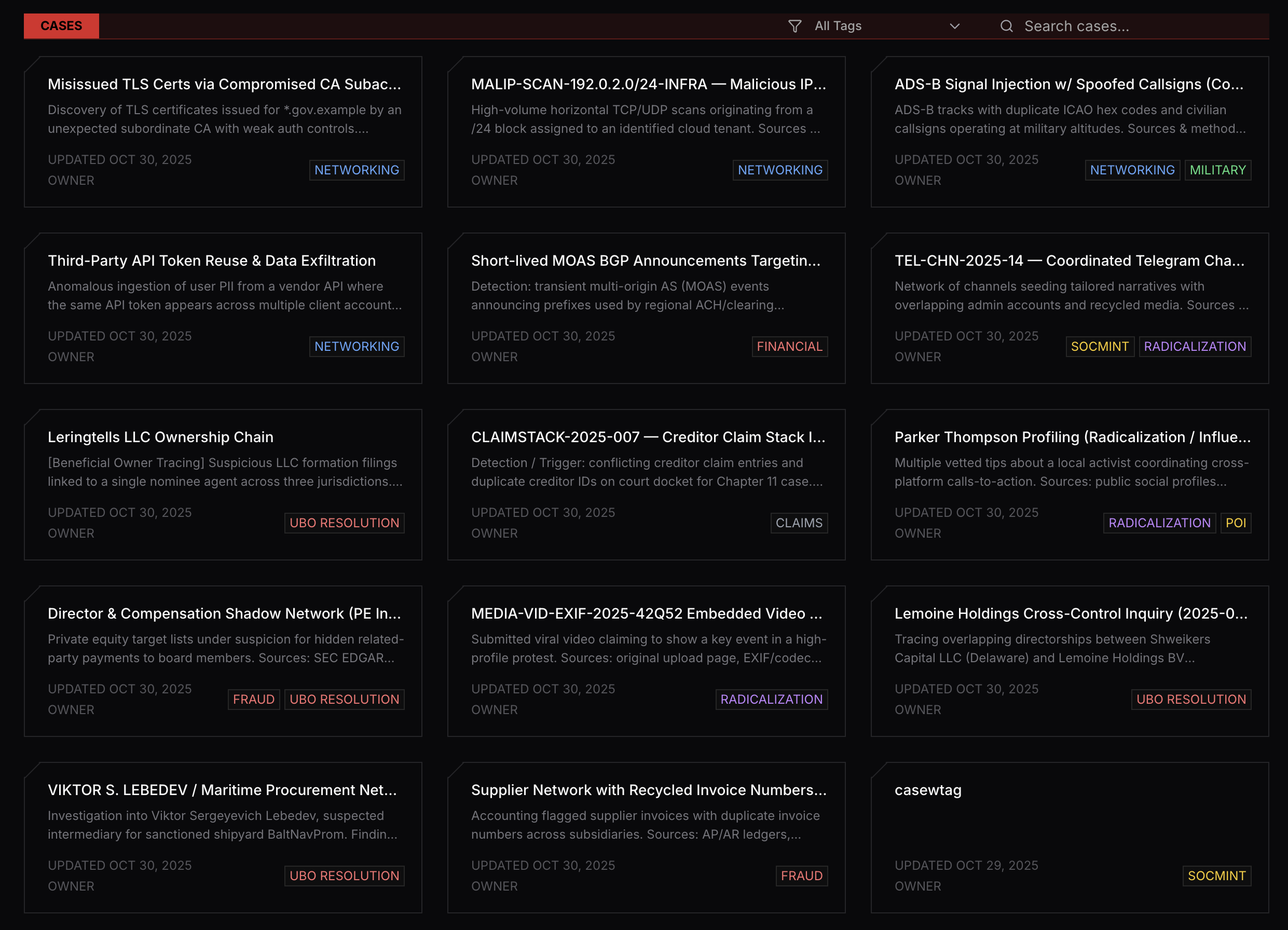 ## What is a Case?
A case is a container for all investigation-related data and activities. It provides:
* **Centralized organization** - Keep all entities, documents, and findings in one place
* **Relationship mapping** - Visualize connections between people, organizations, and events
* **Team collaboration** - Share insights and work together on investigations
* **Access control** - Manage who can view and edit case information
## Getting Started with Your First Case
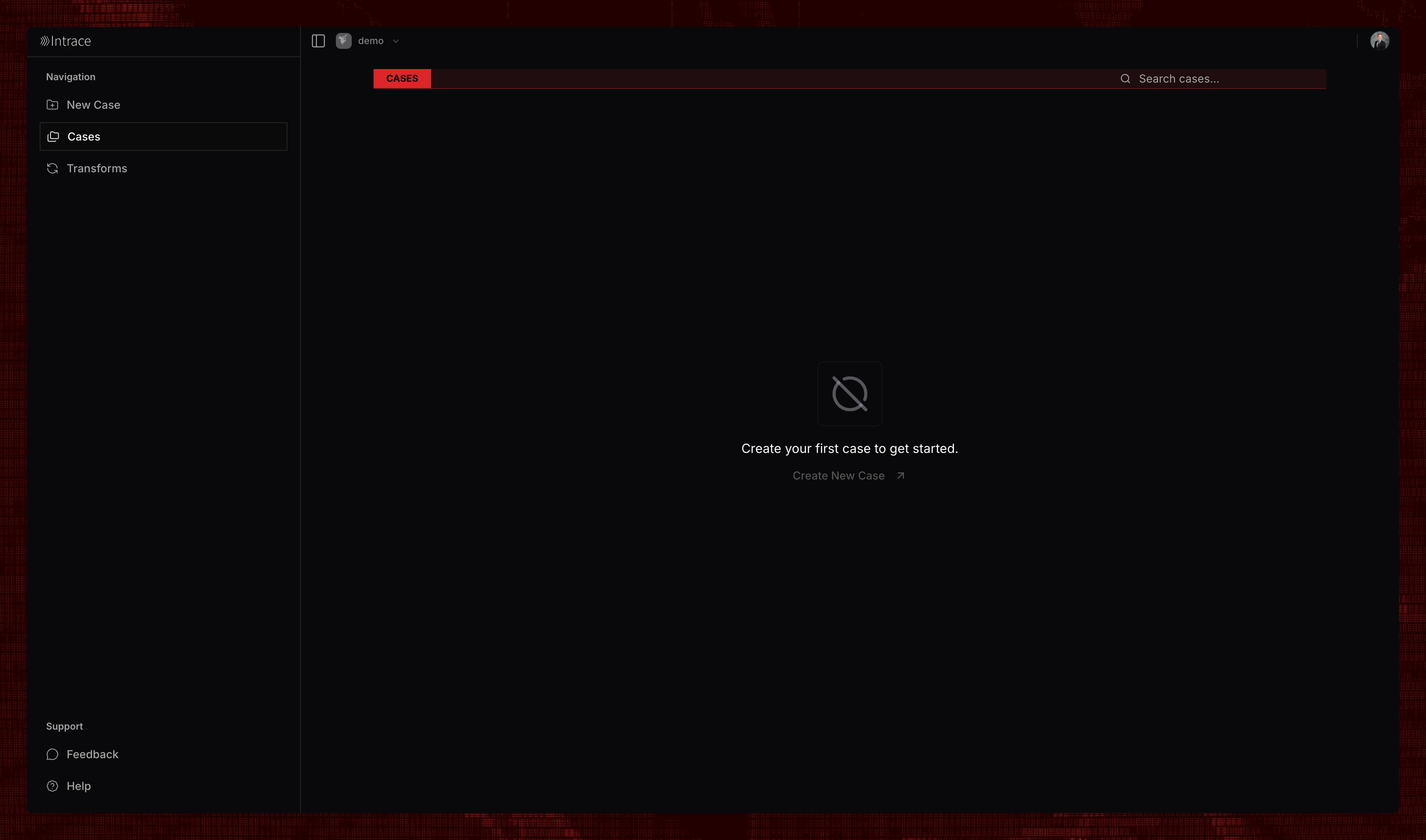
When you first access Cases, you'll see an empty state view prompting you to create your first case.
## What is a Case?
A case is a container for all investigation-related data and activities. It provides:
* **Centralized organization** - Keep all entities, documents, and findings in one place
* **Relationship mapping** - Visualize connections between people, organizations, and events
* **Team collaboration** - Share insights and work together on investigations
* **Access control** - Manage who can view and edit case information
## Getting Started with Your First Case
When you first access Cases, you'll see an empty state view prompting you to create your first case.
 ## Creating a Case
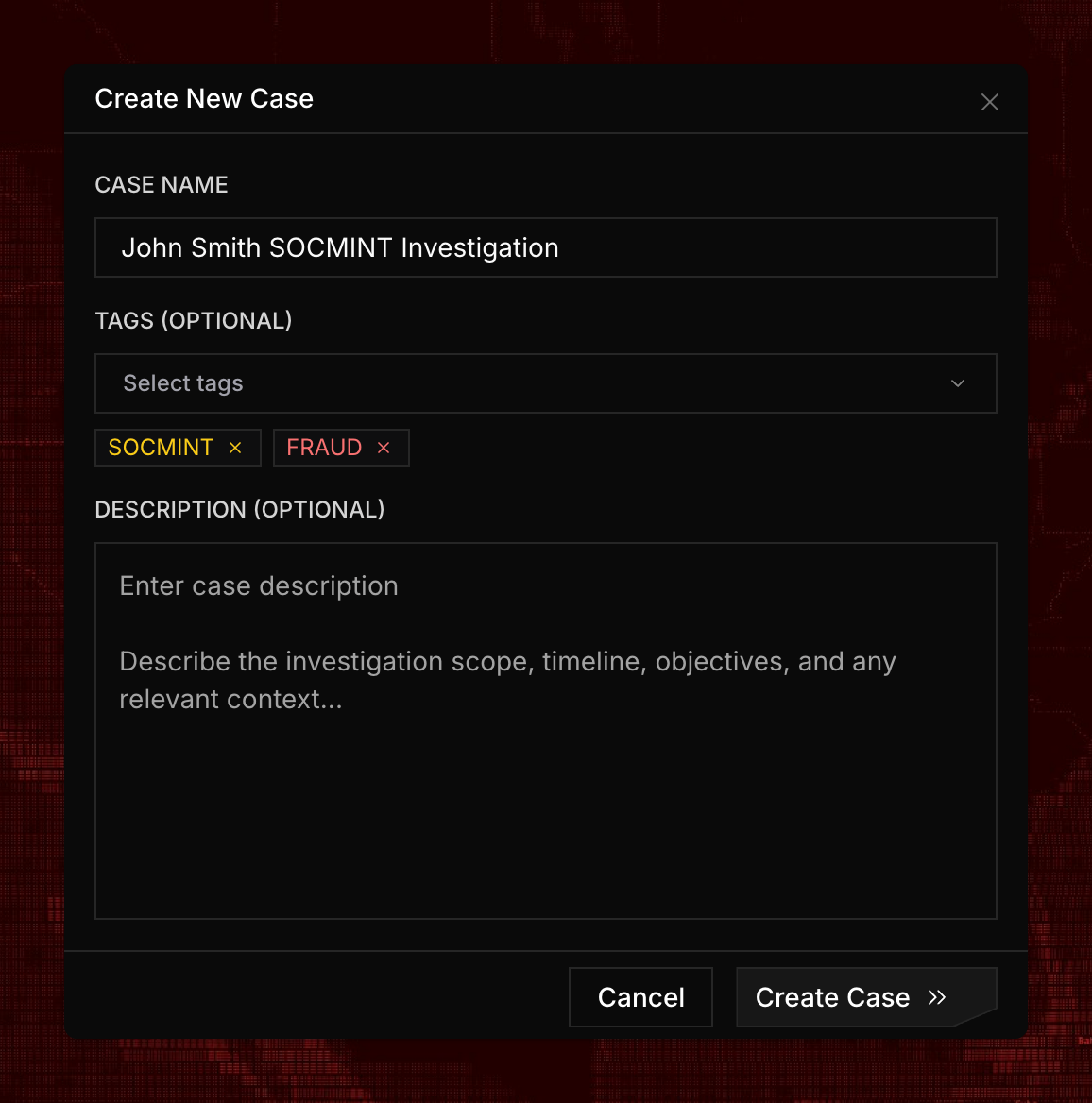
To create a new case:
Click the "New Case" button to open the case creation dialog.
Provide a name and description for your case.
Add tags to your case to help organize and categorize your investigations.
## Creating a Case
To create a new case:
Click the "New Case" button to open the case creation dialog.
Provide a name and description for your case.
Add tags to your case to help organize and categorize your investigations.
 ## Working with Cases
Once you've created a case, you have access to multiple investigation types. Each case can contain any number of investigations of each type, allowing you to conduct comprehensive, multi-faceted investigations.
## Working with Cases
Once you've created a case, you have access to multiple investigation types. Each case can contain any number of investigations of each type, allowing you to conduct comprehensive, multi-faceted investigations.
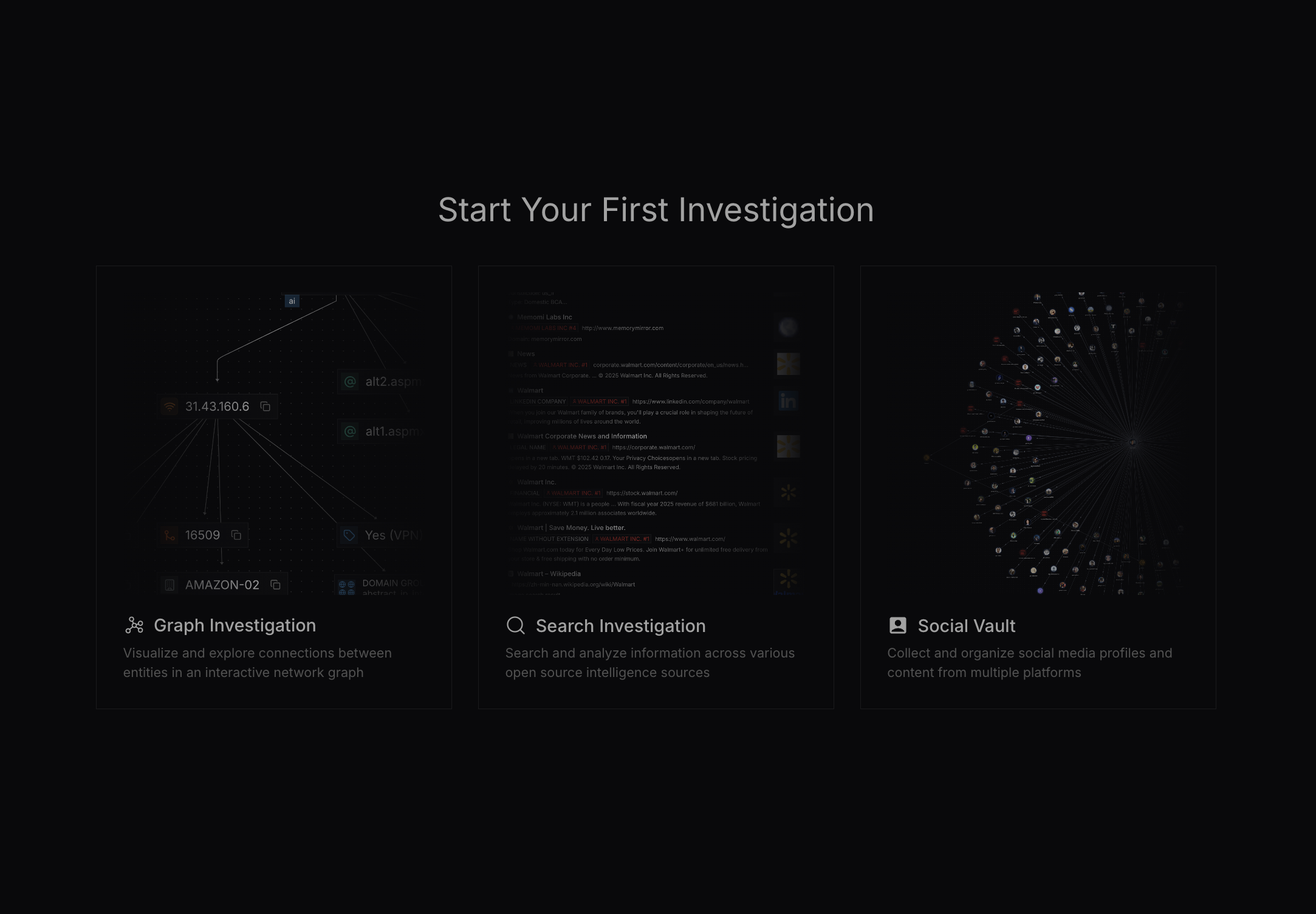 As shown above, you can start investigations using a:
* **Graph Investigation** - Visualize and explore relationships between entities
* **Search Investigation** - Search across multiple data sources with AI filtering
* **Social Vault Investigation** - Archive and analyze social media and digital evidence
You can create a new investigation at any time by clicking the "New" button on the top right of the sidebar.
### Case Entities
Case entities serve as a way to document persons of interest (POIs) and companies at a global case level, making them accessible across all investigations within the case. Learn more about [Case Entities](#).
## Editing Cases
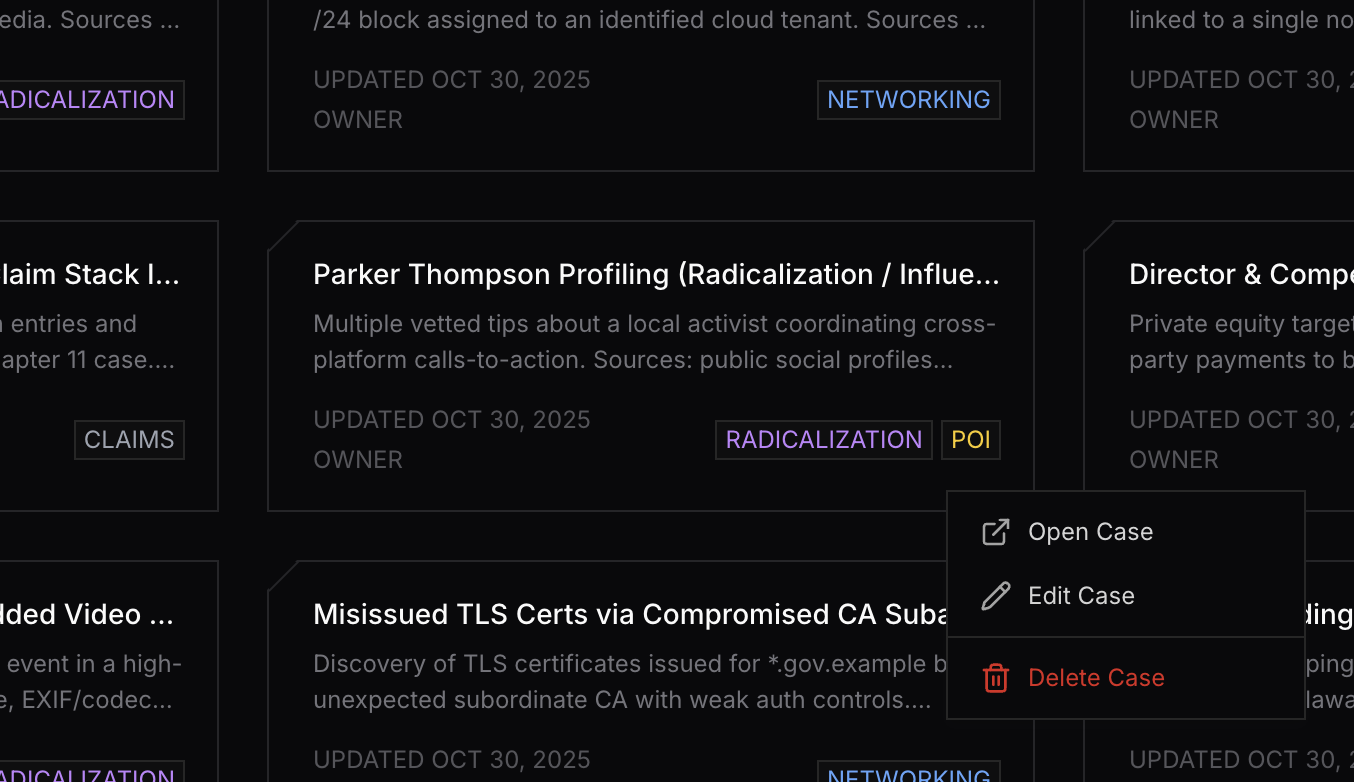
To edit or delete an existing case, simply right-click on the case to access the context menu with available options.
As shown above, you can start investigations using a:
* **Graph Investigation** - Visualize and explore relationships between entities
* **Search Investigation** - Search across multiple data sources with AI filtering
* **Social Vault Investigation** - Archive and analyze social media and digital evidence
You can create a new investigation at any time by clicking the "New" button on the top right of the sidebar.
### Case Entities
Case entities serve as a way to document persons of interest (POIs) and companies at a global case level, making them accessible across all investigations within the case. Learn more about [Case Entities](#).
## Editing Cases
To edit or delete an existing case, simply right-click on the case to access the context menu with available options.